Color Contrast Testing: Tools & Quick Wins 2025

Poor color contrast is the most common web accessibility error, costing businesses daily conversions. Over 285 million people worldwide have visual impairments, and even with perfect vision, poor contrast can become a barrier in unfavorable lighting conditions[1][2]. The good news: contrast errors can be found and fixed immediately with the right tools in just minutes – without major design effort.
Why Color Contrast Determines Success or Failure
Contrast problems aren't just an accessibility issue, they're a business problem. Studies show that 38% of users leave a website when content is hard to read[3]. At the same time, accessible websites increase conversion rates by an average of 15% and significantly improve SEO performance[4][5].
Since the German Accessibility Strengthening Act (BFSG) came into effect in June 2025, sufficient contrast is not just recommended but legally mandatory. Violations can result in fines up to 100,000 euros[6][7]. But instead of viewing contrast as a burdensome obligation, businesses should see it as an opportunity: a contrast-optimized website reaches new audiences and improves user experience for all visitors.
WCAG AA Standards: Understanding Minimum Requirements
The Web Content Accessibility Guidelines (WCAG) define clear contrast requirements that serve as the international standard[8][9][10]:
Normal Text (under 18pt/24px): Minimum 4.5:1 contrast ratio
Large Text (over 18pt/24px or 14pt/18.5px bold): Minimum 3:1 contrast ratio
UI Elements (buttons, icons, form fields): Minimum 3:1 contrast ratio
These values are based on scientific findings about contrast perception and account for typical visual impairments[9][11]. The contrast ratio ranges from 1:1 (identical colors) to 21:1 (black text on white background).
The 7 Best Free Color Contrast Tools 2025
1. WebAIM Contrast Checker – The Classic for Precision
The WebAIM Contrast Checker is the most widely used tool for contrast testing and offers a clear user interface[8][12]. Simply enter hex codes or use the color picker – the tool immediately shows the contrast ratio and WCAG conformance.
Features: Lightness slider for color optimization, API access for developers, bookmarklet for quick tests on any website. Perfect for initial contrast checks and as a reference for other tools.
2. Colour Contrast Analyser (CCA) by TPGi – The Professional Standard
The CCA is a free desktop application considered the gold standard for accessibility experts[13][14]. With the eyedropper function, you can pick colors directly from the screen – ideal for testing existing websites.
Pro Features: Alpha transparency support, color blindness simulator, customizable result formats for reports, slider for real-time optimization. Particularly valuable for comprehensive audits and professional documentation.
3. Chrome DevTools – Integrated into Your Workflow
Chrome Developer Tools offer native contrast testing directly in the browser[15][16]. In the Elements panel, a warning icon appears for contrast problems, and the color picker automatically shows compliant alternatives.
Workflow Integration: CSS overview shows all contrast problems at a glance, Lighthouse audit automatically finds critical areas, Issues tab reports problems in real-time. Indispensable for developers who want to test continuously.
4. Kontrastrechner.de – German All-in-One Solution
This free German tool offers an intuitive user interface with real-time preview[17][18]. Especially helpful: live visualization immediately shows how texts appear in different sizes.
Local Advantages: German user interface, GDPR-compliant, detailed explanations of WCAG standards, consideration of German legal requirements. Ideal for German companies systematically addressing accessibility.
5. Coolors Contrast Checker – Design Integration
Coolors is primarily a color palette generator but also offers a precise contrast checker[19]. Particularly valuable for designers already working with Coolors who want to integrate contrast testing into their design workflow.
Design Focus: Direct integration into color palette creation, export functions for various formats, community features for shared palettes. Perfect for the design phase of new projects.
6. Stark for Figma/Sketch – Directly in Your Design Tool
The Stark plugin brings contrast testing directly into design tools like Figma, Sketch, or Adobe XD[14]. Contrast is checked during the design process – not just during development.
Design Tool Integration: Real-time testing during design, color blindness simulation, batch testing for entire artboards, team collaboration with accessibility comments. Revolutionizes the design workflow for accessibility.
7. WAVE – Holistic Website Analysis
The Web Accessibility Evaluation Tool checks not only contrast but the entire accessibility of a website[14]. Particularly valuable for an initial overview of all accessibility problems.
Holistic Approach: Automatic detection of all text elements, contextual error display, integration with other accessibility tests, free browser extension. Ideal for complete analyses of existing websites.
5 Quick Wins for Immediate Contrast Improvements
Quick Win 1: Darken Gray Tones
The most common contrast error: too light gray tones for text. Instead of #999999 (2.8:1), use #767676 (4.5:1) for normal text[10][2]. This minimal change makes your website immediately WCAG-compliant without affecting the design.
Pro Tip: Create a gray tone palette with at least 4.5:1 contrast for all text sizes. Many corporate designs use grays that are too light – there's enormous optimization potential here.
Quick Win 2: Optimize Button Contrast
Buttons are critical conversion elements that are often overlooked. Check not only text color but also border and background contrast[10][2]. A button must be recognizable as a standalone element with 3:1 contrast.
Barrierefix Tip: Use our guide for accessible button design to avoid common errors and boost conversion rates. Hover and focus states are especially critical.
Quick Win 3: Fix Placeholder Text
Placeholder text in forms is often far too light and therefore unreadable[20]. Standard placeholders (#999999) have only 2.8:1 contrast – well below the WCAG minimum.
Instant Solution: Use at least #757575 for placeholder text or replace them with visible labels. This improves not only accessibility but also form conversion.
Quick Win 4: Link Contrast Without Underlines
Links identified only by color must have 3:1 contrast to surrounding text[8]. Blue links (#0066CC) on black text (#000000) usually don't meet this requirement.
Practical Solution: Use darker link colors (#0052A3) or combine color with other visual cues. For more information, see our blog article about accessible navigation.
Quick Win 5: Strengthen Status Messages
Success and error messages are often too weakly contrasted. Green success messages (#28a745) on white background have only 3.1:1 contrast – too little for important information[10].
Improvement: Use #1e7e34 for success messages (4.5:1) and #721c24 for error messages (5.1:1). Additionally combine colors with icons for maximum clarity.
Integrate Automated Contrast Testing into Your Workflow
Modern development workflows should automate contrast testing. Tools like axe-core or Pa11y can be integrated into CI/CD pipelines and stop deployments on contrast errors[14].
Browser Extensions like axe DevTools or WAVE check contrast in real-time during development. For design teams, Figma plugins like Stark or Color Oracle offer continuous contrast validation.
Pro Tip: Implement contrast tests in your code reviews. A simple script can automatically check all color combinations on your website and generate reports.
Common Contrast Pitfalls and How to Avoid Them
Text on Image Backgrounds
Images as backgrounds are problematic in terms of contrast since brightness varies across the image[10][2]. Standard solutions like dark overlays don't always work reliably.
Professional Solution: Use CSS filters or gradient overlays with at least 50% opacity. Even better: place text on solid-colored areas or use text shadows with sufficient contrast.
Corporate Design vs. Accessibility
Many companies fear that WCAG-compliant contrast will compromise their corporate design. This is a myth – good design and accessibility complement each other perfectly[10][21].
Design Compromises: Use brand colors for decorative elements and optimized contrast for functional text. Small color adjustments (a few hex steps) are barely visible but significantly improve conformance.
Underestimating Mobile Contrast
Smartphones are often used in direct sunlight, requiring significantly higher contrast. WCAG AA is the absolute minimum here – AAA (7:1) is more advisable[9].
SEO Benefits of Optimal Contrast
Search engines increasingly evaluate user experience as a ranking factor, and accessibility is an important UX indicator[4][22]. Websites with good contrast have on average 12% more organic traffic and better Core Web Vitals.
Google doesn't directly consider accessibility as a ranking factor, but the indirect effects are measurable: lower bounce rates, longer dwell time, better mobile user experience[23][24].
Barrierefix Recommends: Integrate contrast optimization into your SEO strategy. Easily readable content is more frequently shared, linked, and read completely – all positive signals for search engines.
Legal Security Through Proactive Contrast Testing
The BFSG (German Accessibility Strengthening Act) brings clear obligations but also planning security. Companies that act now not only avoid fines but benefit from competitive advantages[7][25].
Practical Approach: Conduct quarterly contrast audits and document improvements. This demonstrates good faith and systematic approach in case of audits.
Visit our blog for more articles on BFSG implementation and legally compliant accessibility. For more complex contrast problems, the barrierefix.de team supports you with professional audits and solution strategies.
Your Next Step: The 15-Minute Contrast Check
Start today with a quick contrast audit of your most important pages. Check homepage, product pages, and checkout process with the WebAIM Contrast Checker. Note all values below 4.5:1 and fix the most critical problems first.
Prioritization by Impact:- Main navigation and important buttons
- Headings and body text
- Form elements and error messages
- Footer links and secondary text
Contrast optimization is one of the most effective quick wins for web accessibility. With the right tools and systematic approach, you can transform your website in just a few hours from a barrier into a bridge to new audiences.
Free audit of your website
Let us check your website for accessibility – free and non-binding
Topics:
Weitere Artikel
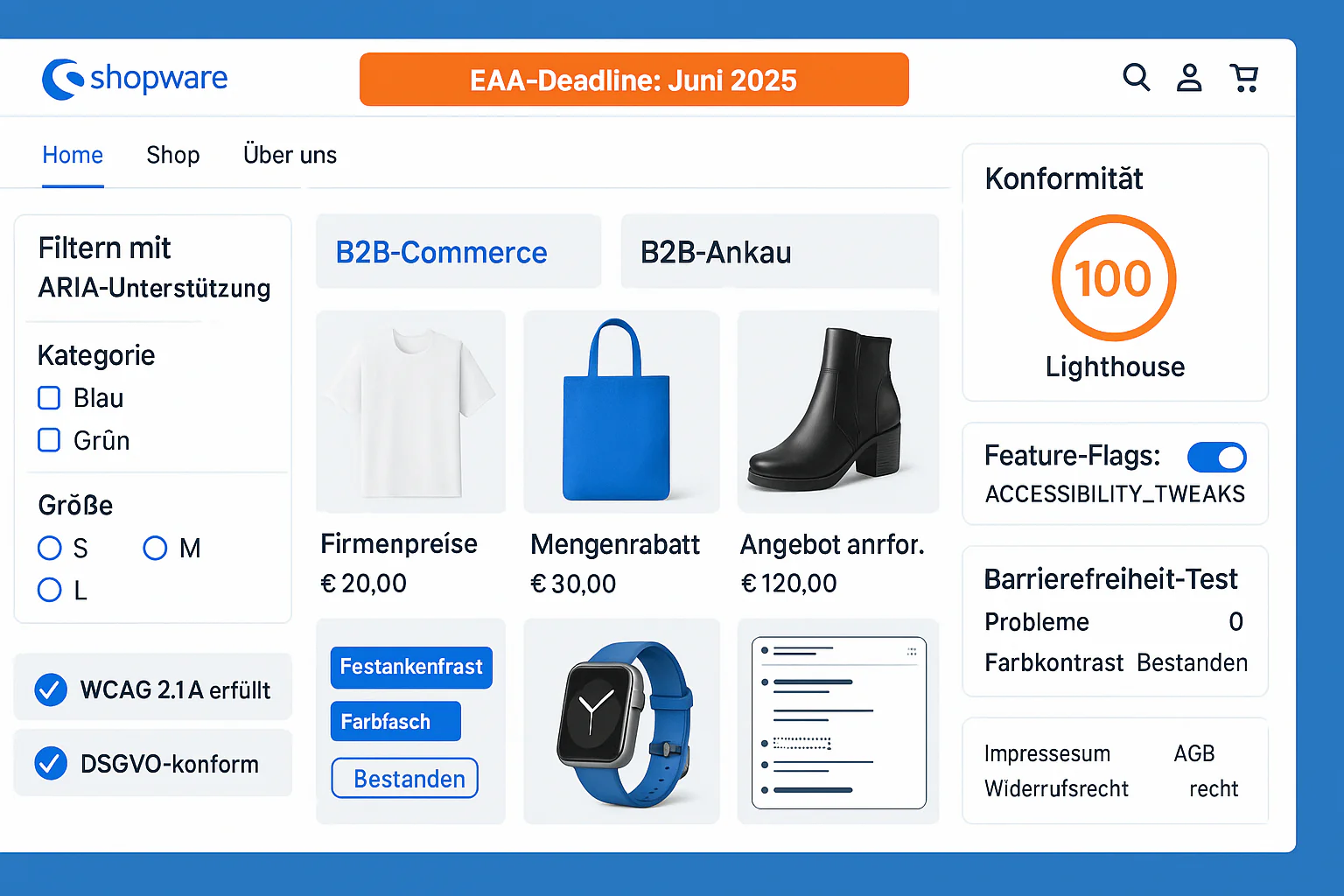
Shopware 6 Accessibility: EAA Compliance Guide for E-Commerce
Shopware 6.7 Accessibility Guide 2025: Built-in WCAG 2.1 Features, EAA Compliance, B2B Features - Achieving Perfect 100/100 Lighthouse Score.
Screen Reader Testing: 7 Instant Checks for Perfect Accessibility
As a screen reader user, I experience daily which websites truly work and which make me despair after just seconds. The good news: With seven targeted instant...
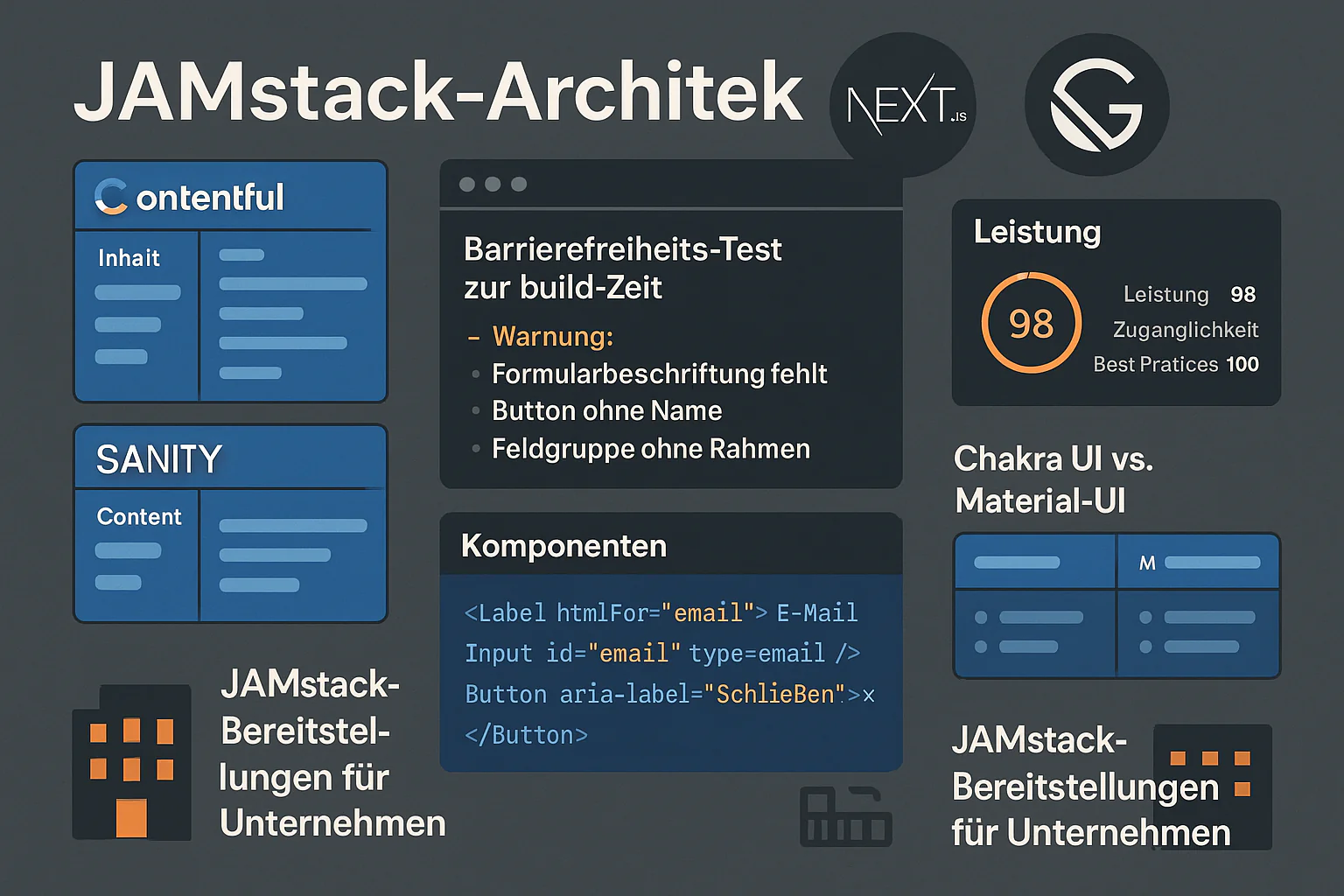
JAMstack Accessibility: Next.js, Gatsby & Headless CMS
JAMstack Accessibility Guide 2025: Next.js vs Gatsby, React WCAG Patterns, Headless CMS, Chakra UI - Performance + Accessibility for modern Web Apps.